
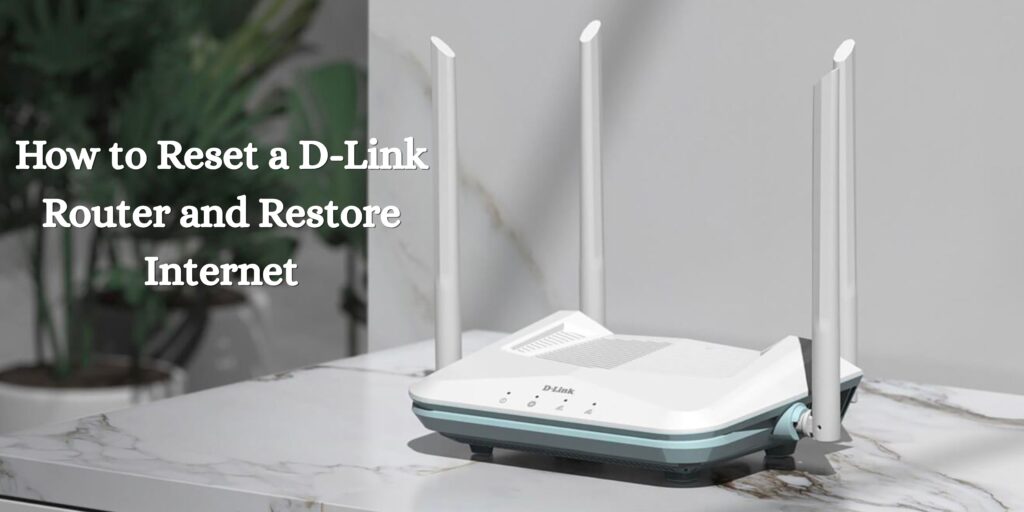
Is your D-Link router not connecting to the internet? Are you experiencing slow WiFi speeds, frequent disconnections, or login problems? In many cases, performing a router reset can solve these issues and restore your internet connection.
A D-Link router reset returns the device to its factory default settings, removing any incorrect configurations that may be causing network problems. In this guide, you’ll learn when to reset your router, how to do it correctly, and how to restore your internet connection afterward.
Why You May Need to Reset Your D-Link Router
There are several situations where resetting your D-Link router can help:
- The router is connected, but there is no internet access.
- You forgot the admin password.
- The WiFi network keeps disconnecting.
- The router is not responding to login attempts.
- You recently changed settings and the internet stopped working.
- The router is experiencing frequent performance issues.
Before resetting your router, it’s always a good idea to restart it first. If a simple reboot doesn’t fix the issue, a factory reset may be necessary.
What Happens When You Reset a D-Link Router?
A factory reset erases all customized settings, including:
- WiFi network name (SSID)
- WiFi password
- Administrator password
- Port forwarding settings
- Security settings
- ISP configuration details
After the reset, the router returns to the same condition it was in when it left the factory.
How to Reset a D-Link Router
Method 1: Using the Reset Button
This is the easiest and most common method.
Step 1: Turn On the Router
Make sure your D-Link router is powered on.
Step 2: Locate the Reset Button
Find the small reset hole on the back or bottom of the router. It is usually labeled “Reset.”
Step 3: Press and Hold the Button
Using a paperclip or pin, press and hold the reset button for approximately 10-15 seconds.
Step 4: Wait for the Router to Restart
Release the button once the LED lights begin flashing. The router will reboot automatically.
The factory reset process may take several minutes to complete.
Method 2: Reset Through the Router’s Web Interface
If you can still access the router settings, you can perform the reset online.
Steps:
- Connect your device to the D-Link router.
- Open a web browser.
- Enter the router’s IP address, usually:
- 192.168.0.1
- 192.168.1.1
- Log in using your administrator credentials.
- Navigate to:
Management > System > Restore to Factory Default Settings - Click Restore or Reset.
The router will restart and erase all existing settings.
How to Restore Internet After Resetting Your D-Link Router
After the factory reset, you’ll need to set up the router again to restore your internet connection.
Step 1: Connect to the Router
Use an Ethernet cable or connect to the default WiFi network displayed on the router label.
Step 2: Open the Setup Page
Launch your browser and enter:
- 192.168.0.1
- dlinkrouter.local (for supported models)
Step 3: Create a New Admin Password
For security purposes, create a new administrator password.
Step 4: Configure Internet Settings
Most internet providers use automatic configuration. If your ISP requires PPPoE credentials, enter the username and password provided by your internet provider.
Step 5: Set Up WiFi
Create:
- A new WiFi network name (SSID)
- A strong WiFi password
Save the settings and allow the router to restart.
What If the Internet Still Doesn’t Work?
If your internet connection is not restored after resetting the router, try these troubleshooting steps.
Check Cable Connections
Ensure that:
- The power cable is connected properly.
- The Ethernet cable from the modem is plugged into the WAN or Internet port.
Restart the Modem
Turn off your modem for 30 seconds and turn it back on. Then restart the router.
Verify ISP Service
Sometimes the problem isn’t the router at all. Check whether your internet service provider is experiencing an outage.
Update Router Firmware
An outdated firmware version can cause connection issues. Log in to the router dashboard and install the latest firmware available for your model.
Reconfigure Internet Settings
If your ISP uses special settings, you may need to enter:
- PPPoE credentials
- Static IP information
- DNS settings
Contact your internet provider if you’re unsure about these details.
Tips to Prevent Future D-Link Router Problems
To keep your router running smoothly:
- Restart the router once every few weeks.
- Update firmware regularly.
- Use a strong WiFi password.
- Avoid overheating by placing the router in a well-ventilated area.
- Keep a backup of your router settings.
Regular maintenance can help prevent many common internet and connectivity issues.
Final Thoughts
Resetting a D-Link router is one of the most effective ways to fix internet connectivity problems, login errors, and network configuration issues. By following the steps in this guide, you can restore your router to factory settings and quickly get your internet connection back up and running.
If the problem continues even after resetting and reconfiguring the router, the issue may be related to your modem, ISP service, or a hardware failure. In such cases, contacting your internet provider or D-Link support may be the next best step.